

Generate and Use an Access Token
Create, securely store, and use a Testlify access token to authenticate API requests.
Create an access token, store it securely, and use it to authenticate Testlify API requests.
Before you begin
- Sign in to the Testlify workspace where you need to create the token.
- Decide on a descriptive token note and an expiration period that matches its intended use.
1. Open access token settings
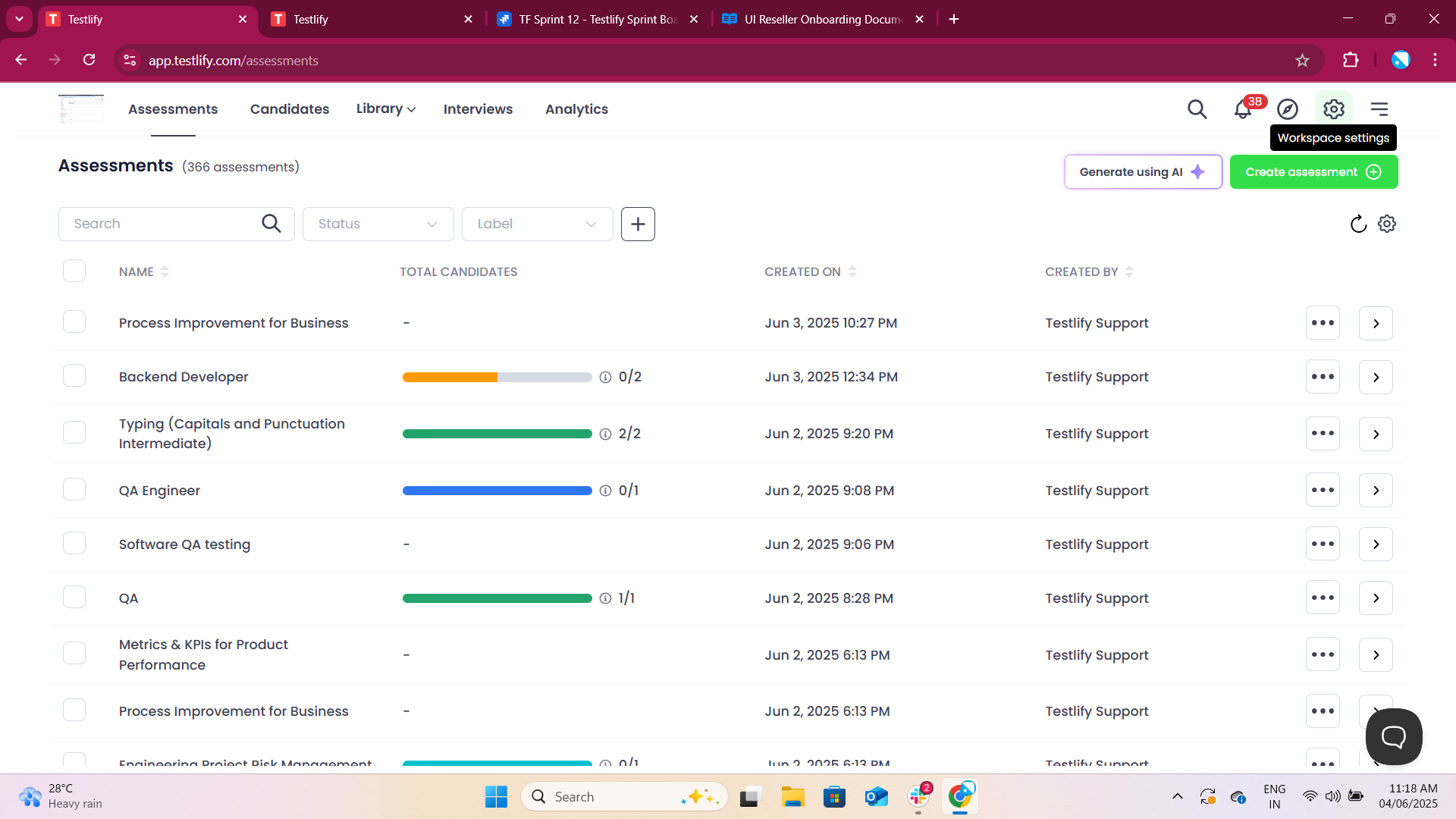
- In the top navigation bar, select the Settings icon (⚙️).
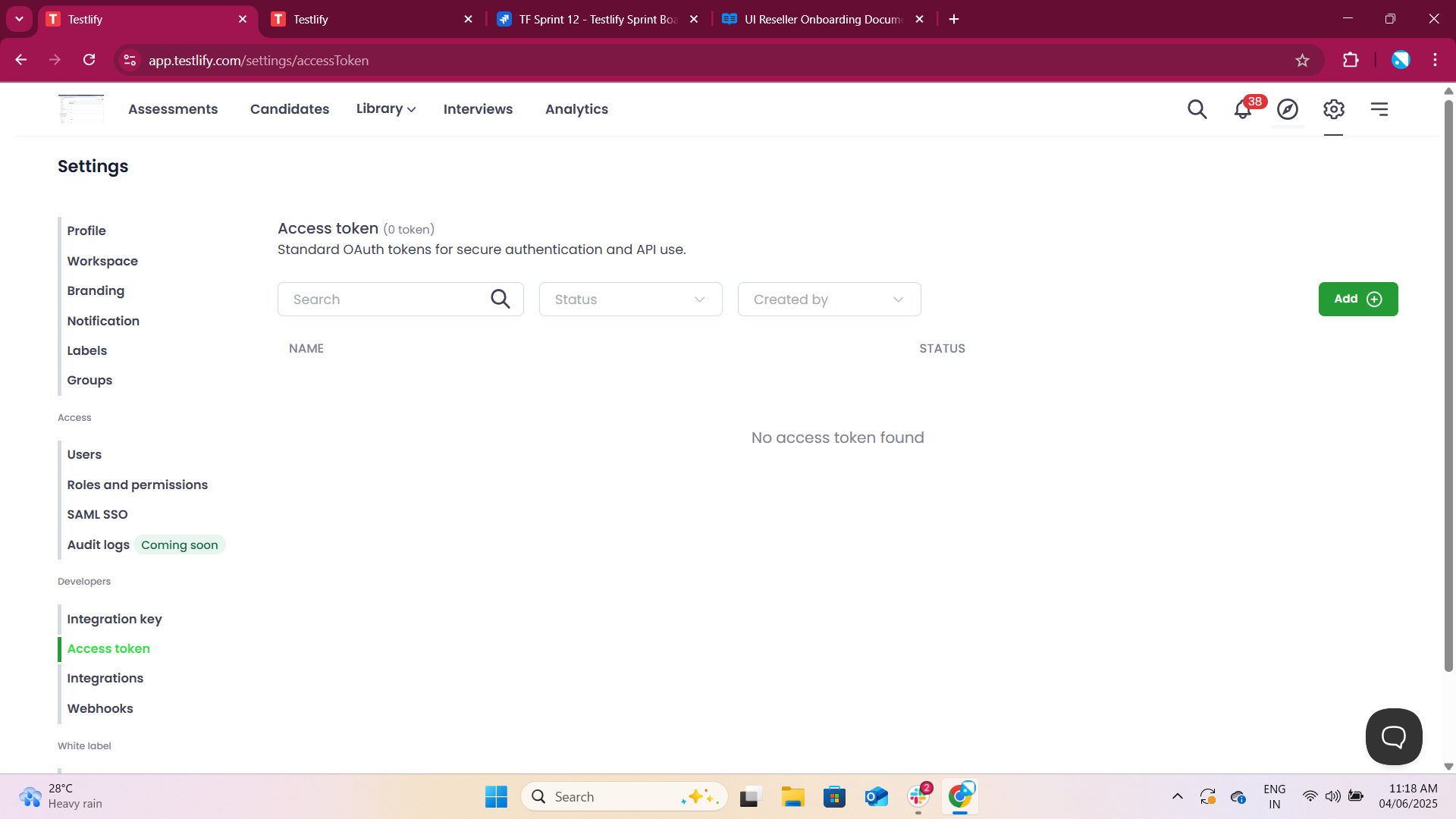
- In the left sidebar, scroll to Developers.
- Select Access token.
2. Generate an access token
- On the Access token page, select Add.
- In Notes, enter a meaningful name that identifies the token's purpose, such as the integration or environment that will use it.
- Set the expiration period. Choose one of the available options:
- 7 days, 15 days, or 30 days
- A Custom date
- No expiration
- Select Generate.
3. Copy and store the token
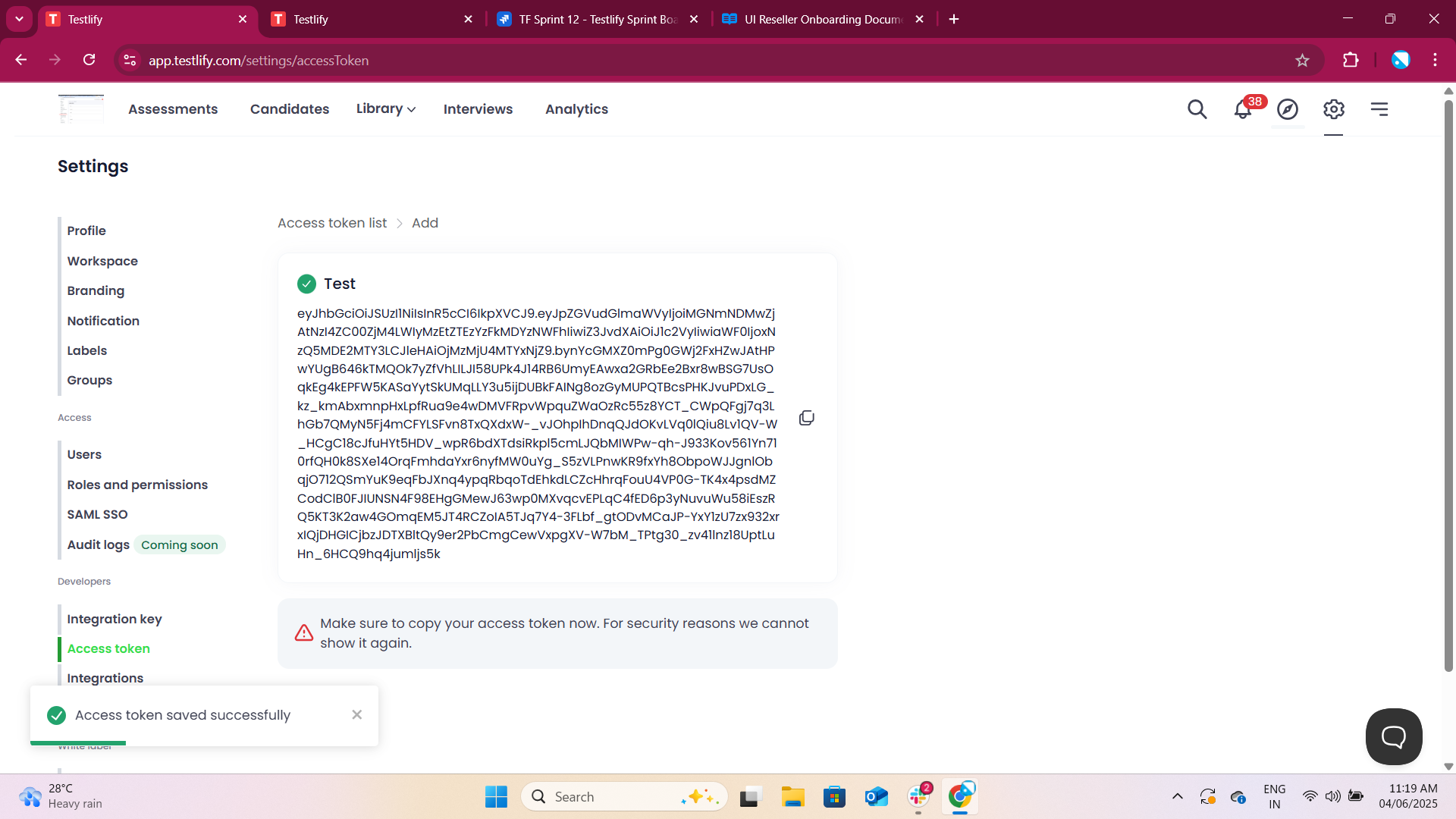
Copy the access token when it appears by selecting the clipboard icon or selecting the token text. Store it in a secure password manager or environment variable.
Testlify displays a newly generated access token only once. Copy it before leaving this screen. Do not commit the token to source control or include it in client-side code.
If a token is exposed, generate a replacement token and update the affected integration as soon as possible.
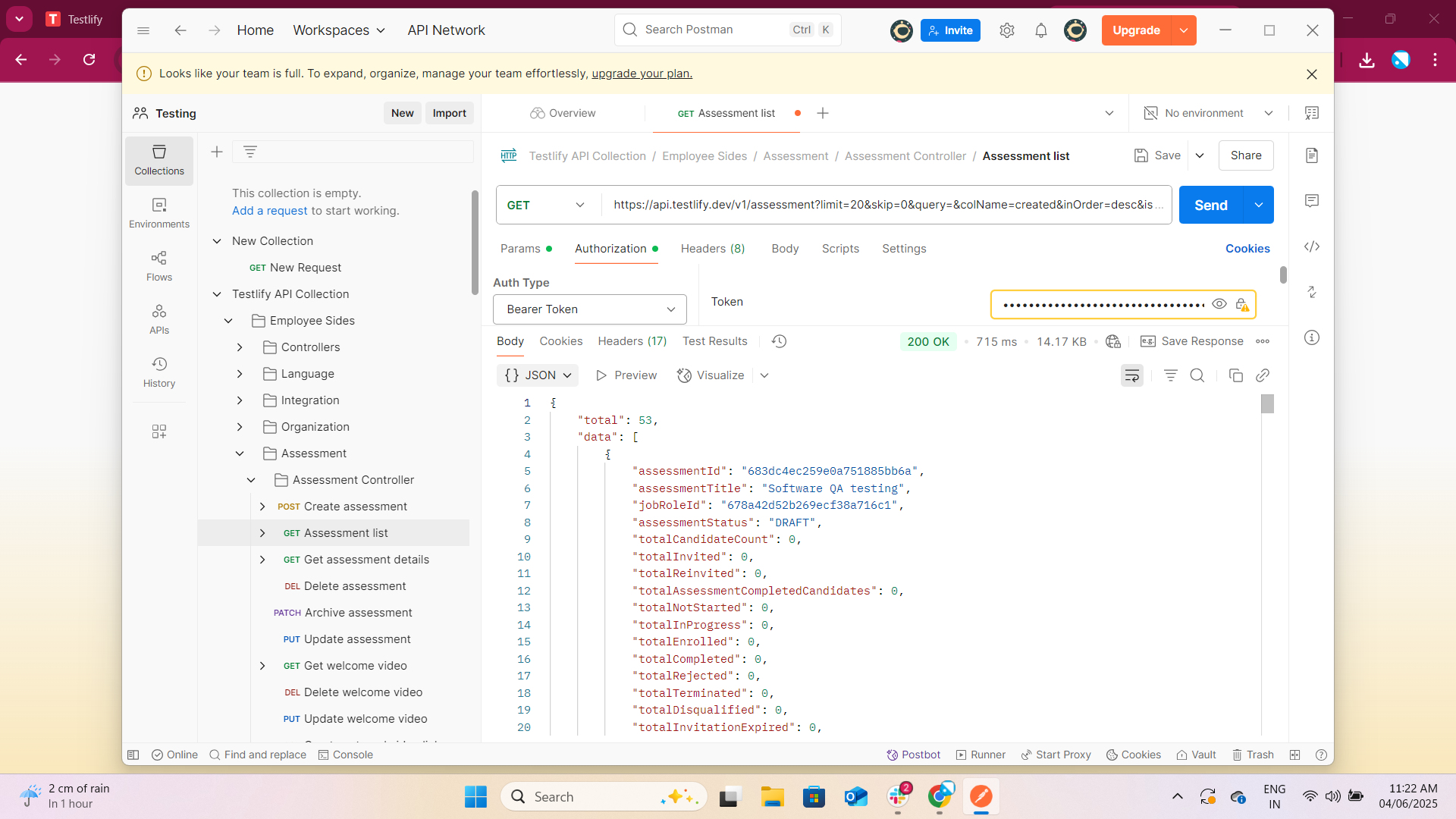
4. Add the token to an API request
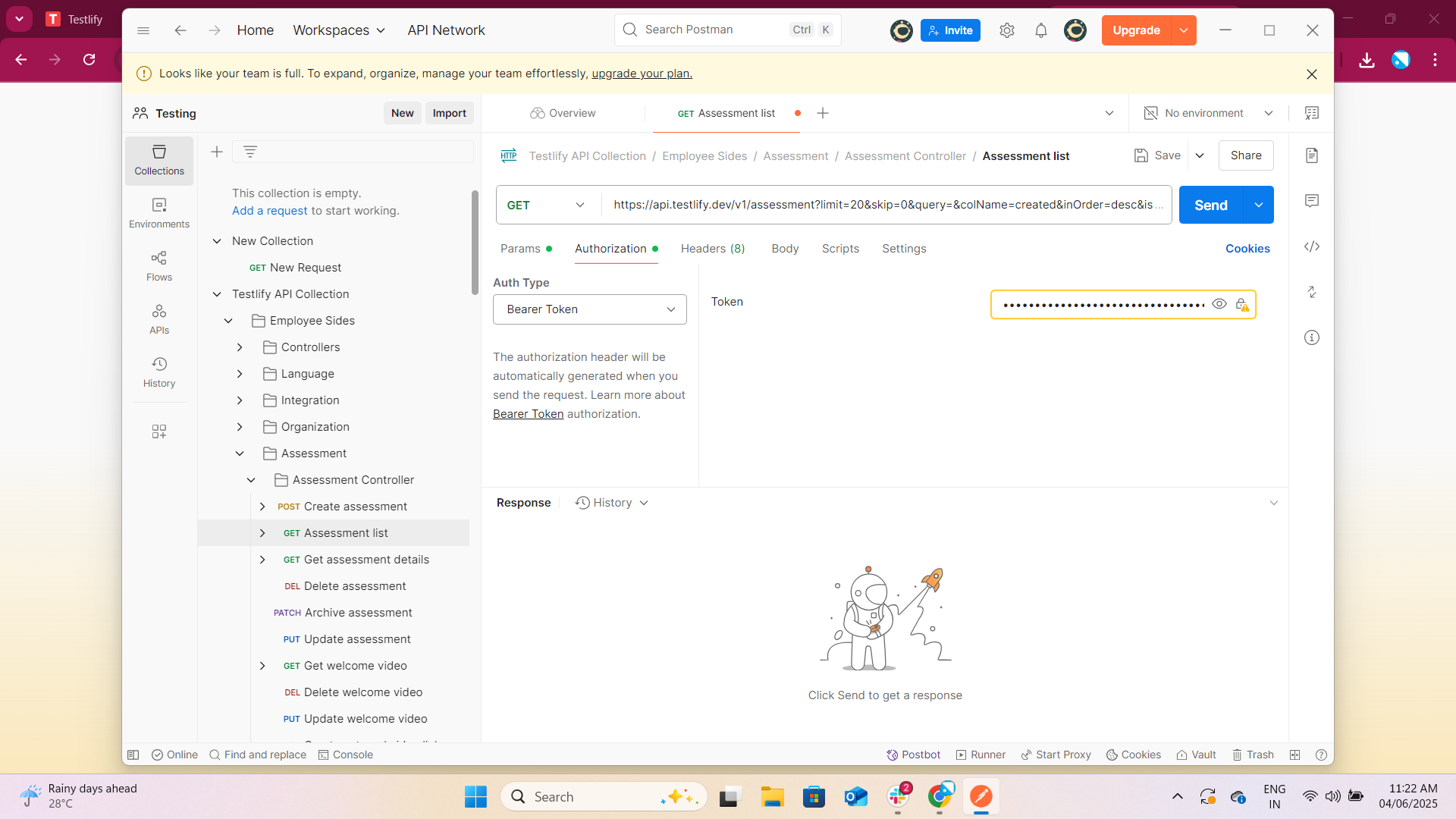
Add the token to your API request's authorization header as shown in the API client examples below.
Optional: Manage token expiration
Use an expiration date whenever the integration does not require a long-lived token. When a token approaches expiration, generate a new token, update the integration, and verify that its API requests continue to authenticate successfully.
Updated 23 days ago